
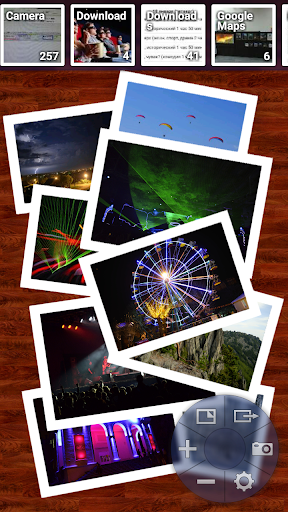
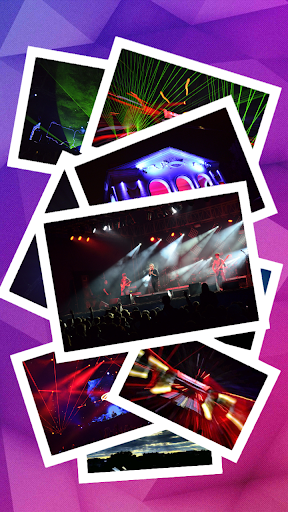
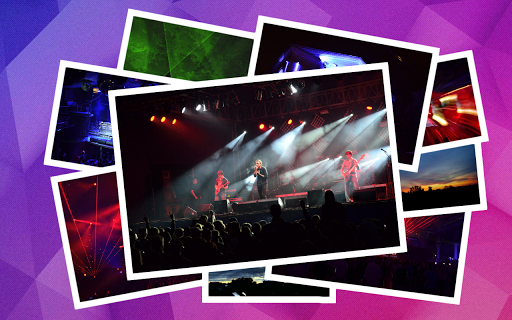
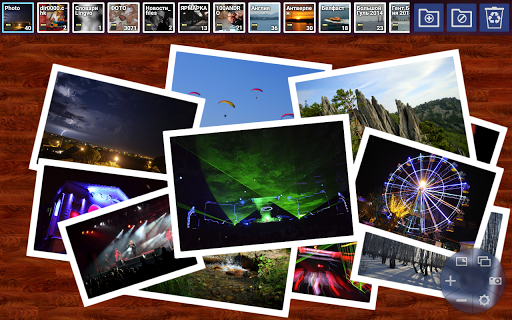
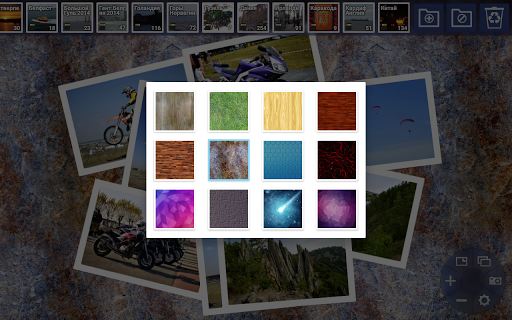
ImPile Gallery allows you to organize photographs, distribute photos to folders, make collages, select and view photos without switching between list and view mode — any one desktop can display several photographs at once and with simple swipes you can distribute them to different albums and folders.
Full support of high resolution images allows you to connect memory card of your DSLR camera to your tablet or smartphone and sort photos directly while travelling!
ImPile Gallery has three desktops switchable one after another — when any of desktops is selected (visible) other two are located to the left and to the right of it.
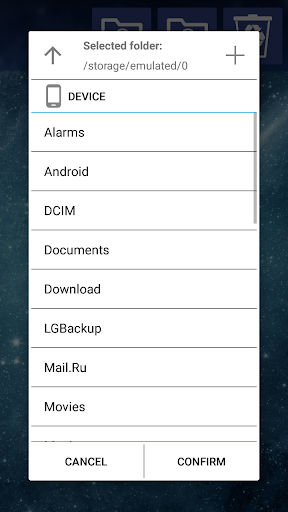
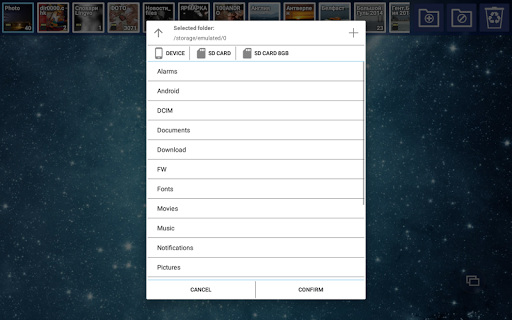
Each desktop can be linked to an album (folder containing image files) by tapping the album preview button on top panel or using the folder selection dialog.
If you linked different albums to neighboring desktops you can
swipe
photos of one desktop
in direction
of other desktop to actually
move
or
copy
image files between these albums. If you swipe a photo to unlinked desktop Gallery suggests to select target album and performs requested file transfer after selecting.
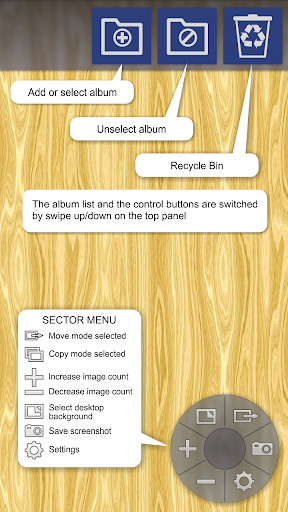
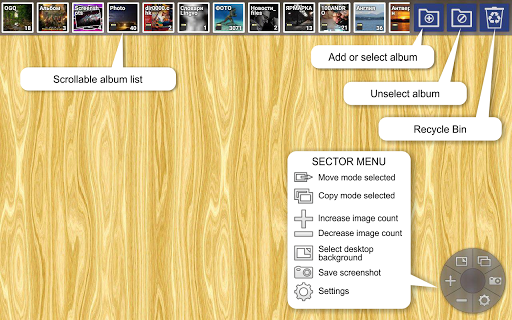
Move or copy mode can be selected with the sector menu and displayed by icon in the menu's center.
•
Tap desktop surface
to show/hide UI — top panel and sector menu.
•
Tap top photo in pile
to automatically zoom it in — tap again or squeeze it to restore photo’s previous size and position. Zoom mode (fill screen, fit to screen or max resolution) can be selected in Settings.
•
Tap an album
in top panel to assign it to selected desktop and show it's photos. You can change count of simultaneously visible photos with " " and "—" sectors of menu.
•
Long tap
on the photo or desktop surface opens context menu of the photo or the album correspondingly.
•
Swipe photo down
to hide it from desktop and show next photo in the album — one by one this way.
•
Swipe down on the desktop surface
allows to hide all photos at once and show next pile of photos in album.
•
Swipe up on the desktop surface
used to return last accidentally hidden photo(s).
•
Swipe photo up
to
delete
the image file to the Recycle Bin from where it could be restored later.
Image files in Recycle Bin can be viewed like in any other album and recovered with context menu's button
Restore
or swiping to neighbor desktop, or permanently deleted with swipe up. Oldest files in Recycle Bin are deleted automatically maintaining permitted Recycle Bin size (defined in Settings). Recycle Bin can be cleared with button
Clear
in context menu shown by long tap on Recycle Bin's button on top panel.
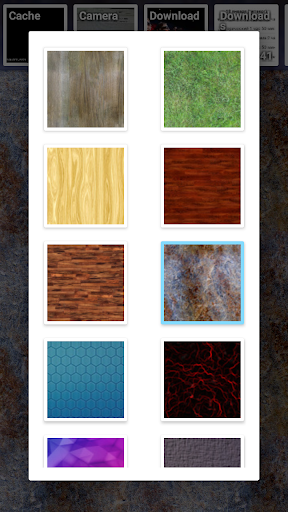
You can select desktop's background picture and save screenshots using corresponding sectors of menu (see pictures).






9Apps 4.9