
Believe it or not! 30,000+ users downloaded Multi Window Split Screen Launcher latest version on 9Apps for free every week! This will give an informative for the other crazy players. This hot app was released on 2018-11-08. That’s it! You’re done?
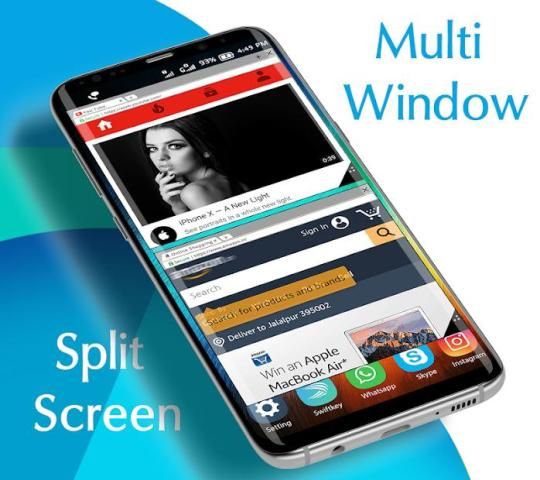
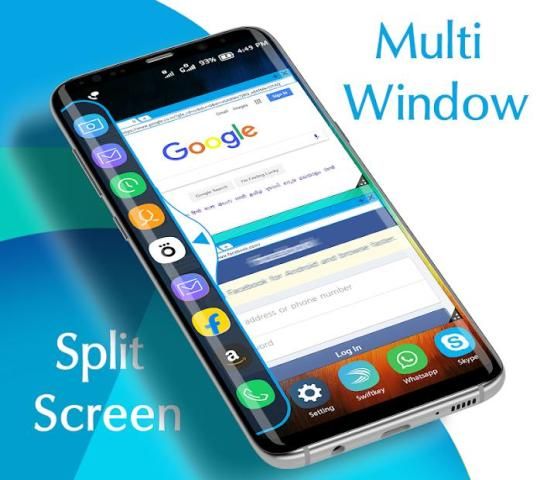
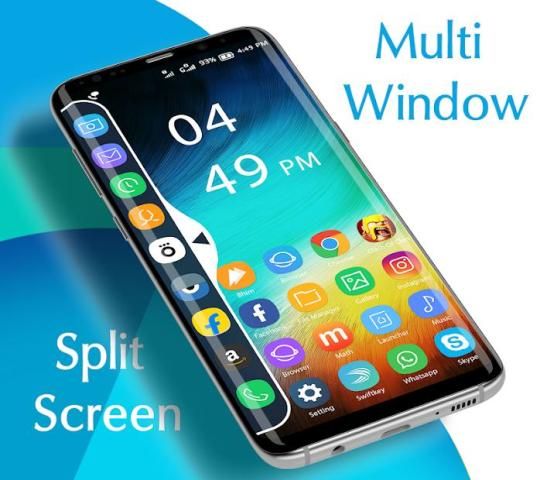
Multi Window Split Screen Launcher is the app by which we can An App By Which You Can Create Shortcuts Of Your Installed Apps Icon Into Multiple Window Tray. And By Clicking On These Shortcuts, You Can Easily Switch From One Task To Another During Your Current Task.
How to use Split Screen Multi Window :
- Just simply toggle Switch on Main page to enable and disable the split screen window.
- Expand and Collapse the split screen window by taping
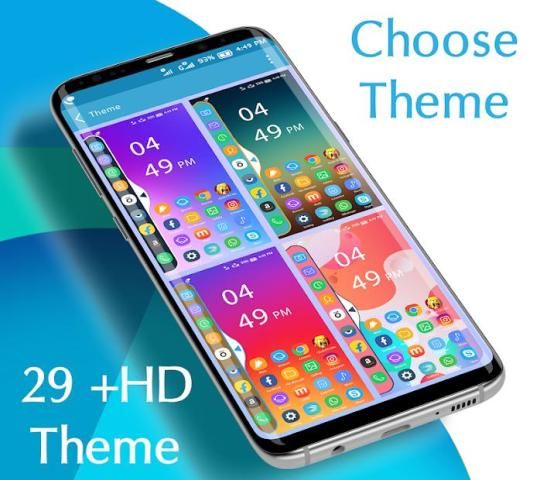
- Select and apply different themes from theme selection page.
- You Can Select Many Different Default Themes.
- You can hide and unhide On long pressing multi window Sidebar icon. (Follow Help )
- Click on add app button to add your favorite apps shortcuts in split screen window.
- No root required
- Long press on item and drag drop for re-arrange icons.
- To remove any app from split screen window just simply press and hold on the app and a remove option will pop-up on the app shortcut.
- Adjust the expanding and collapsing speed from the settings.
Sidebar Multiwindow,You Can Also Create Shortcuts Of Your Installed System Apps Icon Into MutiWindow Tray.
It is just a side launcher with your favorite applications.
Multi Window Split Screen Launcher adalah aplikasi yang kita dapat Aplikasi Dengan Yang Anda Dapat Membuat Pintasan Aplikasi Ikon Anda Diinstal Ke Beberapa Baki Jendela. Dan Dengan Mengklik Pada Pintasan Ini, Anda Dapat Dengan Mudah Beralih Dari Satu Tugas ke Tugas Lain Selama Tugas Anda Saat Ini.
Cara menggunakan Split Screen Multi Window:
- Cukup alihkan Beralih pada Halaman utama untuk mengaktifkan dan menonaktifkan jendela layar terpisah.
- Bentangkan dan Tutup jendela layar terpisah dengan mengetuk
- Pilih dan terapkan tema yang berbeda dari halaman pemilihan tema.
- Anda Dapat Memilih Banyak Tema Default Berbeda.
- Anda dapat menyembunyikan dan menampilkan pada ikon bilah sisi multi-tekan yang panjang. (Ikuti Bantuan)
- Klik tambahkan tombol aplikasi untuk menambahkan pintasan aplikasi favorit Anda di jendela layar terpisah.
- Tidak diperlukan root
- Tekan lama pada item dan drag drop untuk mengatur ulang ikon.
- Untuk menghapus aplikasi apa pun dari jendela layar terpisah, cukup tekan dan tahan aplikasi dan opsi hapus akan muncul di pintasan aplikasi.
- Sesuaikan kecepatan yang meluas dan menurun dari pengaturan.
Sidebar Multiwindow, Anda Juga Dapat Membuat Pintasan Ikon Sistem Aplikasi Yang Diinstal Anda Ke Baki MutiWindow.
Itu hanyalah peluncur samping dengan aplikasi favorit Anda.




9Apps 4.9