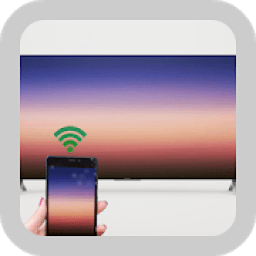
Welcome to our app recommend. 20,000+ users downloaded My NScreen latest version on 9Apps for free every week! The app can be the quickest one to play if you get used to it. This hot app was released on 2018-05-24. And it takes your phone small room to run it.
MY SCreen help to connect your smart phone to your smart TV through WIFI, then you can show the video / Music / Picture from smart phone to smart TV with your family & friend , and you can use smart phone as a remote control unit to operate TV through this app. This app will help you take full advantage of your TV's big screen and good sound effect.
This app should be installed to android smart phone.
Main Features:
A/. Media sharing: Simplay transfer your phone's photo, music and video to your Smart TV to diskplay or play, so you can take advantage of your TV's big screen.
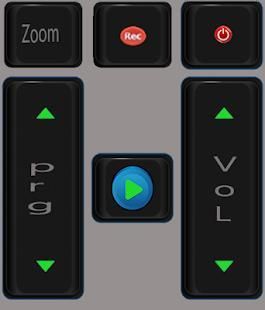
B/. TV Remote control: Allows controlling your smart TV simply over the local network. your phone can act as a Touch pad or TV Remote(IR Remote).
C/ YouTube video shared to smart TV.
How to connect your smart phone to your smart TV:
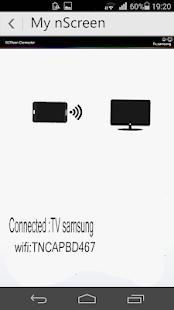
1. Your phone and TV should connect to the same wilreless router, be sure to keep them in the same local network.
2. This app was only tested for Nscreen SmartTV. Theoretically, it can be used for other TV which support DLNA.
3. TV Remote Control function doesn't work for non-TCL smart tv. Media Share works for most of SAMSUNG, LG, SONY, Toshiba Smart TV.
4. This app can works with the following SmartTVs, If this app is ok for you, please response your SmartTV's Model name, these info will help other users.
Details step of media sharing:
1: Click “TCL nScreen” on smart phone. Connect smart phone with smart TV via same Wi-Fi;
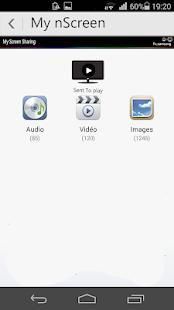
2: Click “Media Sharing” to browse media files;
3: media to TV to playback. (with one of the following options)
a)- Drag & Drop folder/file to the TV icon on top of the screen;
b)- Swing phone towards TV to launch the first file;
c)- Play the media on phone and click the TV sharing icon;
4: While playing on TV, shake the phone to play previous or next file
Details step of Remote control
1. Click “MY NScreen” on Smartphone. Connect Smartphone and Smart TV to the same Wi-Fi router;
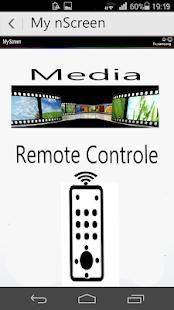
2. Click “Remote Control” to operate Smart TV.
MY layar bantuan untuk menghubungkan ponsel pintar Anda ke smart TV Anda melalui WIFI, maka Anda dapat menampilkan video / Musik / Gambar dari ponsel pintar untuk TV pintar dengan keluarga Anda & teman, dan Anda dapat menggunakan ponsel pintar sebagai unit remote control untuk mengoperasikan TV melalui aplikasi ini. Aplikasi ini akan membantu Anda mengambil keuntungan penuh dari layar besar TV Anda dan efek suara yang baik.
Aplikasi ini harus dipasang untuk android ponsel pintar.
Fitur utama:
SEBUAH/. media berbagi: Transfer Simplay foto, musik ponsel dan video ke Smart TV Anda untuk diskplay atau bermain, sehingga Anda dapat mengambil keuntungan dari layar besar TV Anda.
B /. TV Remote control: Memungkinkan mengendalikan TV pintar Anda hanya melalui jaringan lokal. telepon Anda dapat bertindak sebagai Touch pad atau Remote TV (IR Remote).
Video C / YouTube bersama untuk TV pintar.
Bagaimana menghubungkan ponsel pintar Anda ke smart TV Anda:
1. Telepon Anda dan TV harus terhubung ke router wilreless yang sama, pastikan untuk menjaga mereka dalam jaringan lokal yang sama.
2. Aplikasi ini hanya diuji untuk nScreen SmartTV. Secara teoritis, dapat digunakan untuk TV lain yang mendukung DLNA.
3. TV fungsi Remote Control tidak bekerja untuk non-TCL tv pintar. Media Share bekerja untuk sebagian besar dari SAMSUNG, LG, SONY, Toshiba Smart TV.
4. Aplikasi ini dapat bekerja dengan SmartTV berikut, Jika aplikasi ini ok untuk Anda, silakan respon SmartTV Nama Model Anda, info ini akan membantu pengguna lain.
Rincian langkah berbagi media:
1: Klik “TCL nScreen” pada ponsel pintar. Hubungkan telepon pintar dengan TV pintar melalui Wi-Fi yang sama;
2: Klik “Media Berbagi” untuk menelusuri file media;
3: media untuk TV untuk pemutaran. (Dengan salah satu pilihan berikut)
a) - Drag & Drop folder / file ke icon TV di atas layar;
b) - telepon swing ke arah TV untuk meluncurkan file pertama;
c) - Bermain media di telepon dan klik ikon berbagi TV;
4: Saat bermain di TV, kocok ponsel untuk bermain sebelumnya atau berikutnya berkas
Rincian langkah Remote control
1. Klik “MY nScreen” pada Smartphone. Hubungkan Smartphone dan Smart TV untuk sama router Wi-Fi;
2. Klik “Remote Control” untuk mengoperasikan Smart TV.
9Apps 4.9