
Download the official version of India apps from 9apps now. 20,000+ users downloaded Assistive Touch For Android 2020 latest version on 9Apps for free every week! If you are not comfortable with the old version then you can updated it right now. This hot app was released on 2020-01-18. To read more info about mobile apps, you can click on 9Apps.
What is Assistive Touch?
Assistive Touch is a floating app that stays on your Android’s screen and assists you in getting frequent tasks done easily. It help you access all setting quickly and protect your home button .What the floating panel display on screen , you can easy touch an quickly access games, apps, which you love, you can adjust settings, changes and view the notifications easily. It is really a useful and free tool Assistive touch help you protect the physical button like Home device with just one click . This helps to speed up the device and save battery life.
Highlight Features AssistiveTouch
★ Lock screen quickly with one touch to protect
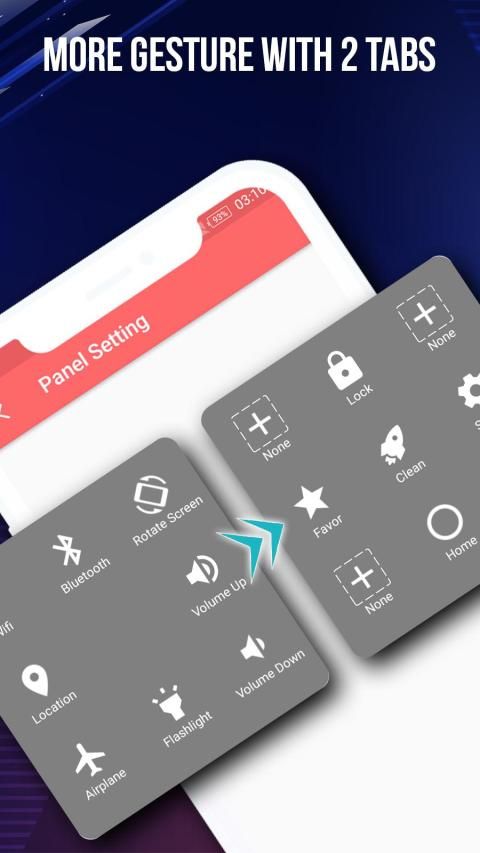
★ Accessing your favorite apps , game or access all setting quickly.
★ Power button A light touch to shut down.
★ View notification center : You can open notification center of your device quickly.
★ Screenshot : you can easy capture screenshot by one touch
★ Recent button : It help open all your recent apps
★ Setting screen: Access setting screen quickly
★ Virtual buttons replace physical buttons (Back, home, recent, volume, power)
★ Boost your phone in assistivetouch you can easily speed up your device with just one click, frees up memory (RAM)
★ Setting phone mode quickly (Normal mode,Vibrant Mode, Silent Mode)
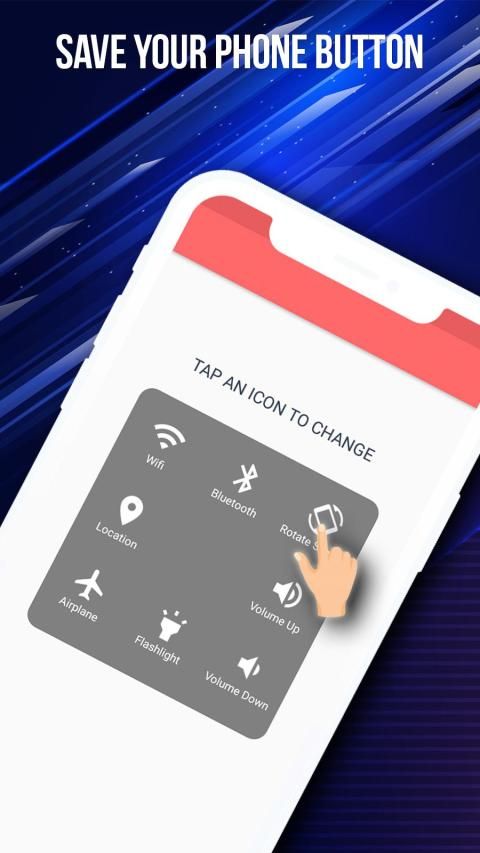
★ Adjust settings easily : Touch and turn ON/OFF Wifi, GPS, Bluetooth . You can adjusting volume , screen brightness
★ Flashlight : ON/OFF flashlight quickly with Assistivetouch
Customization UI
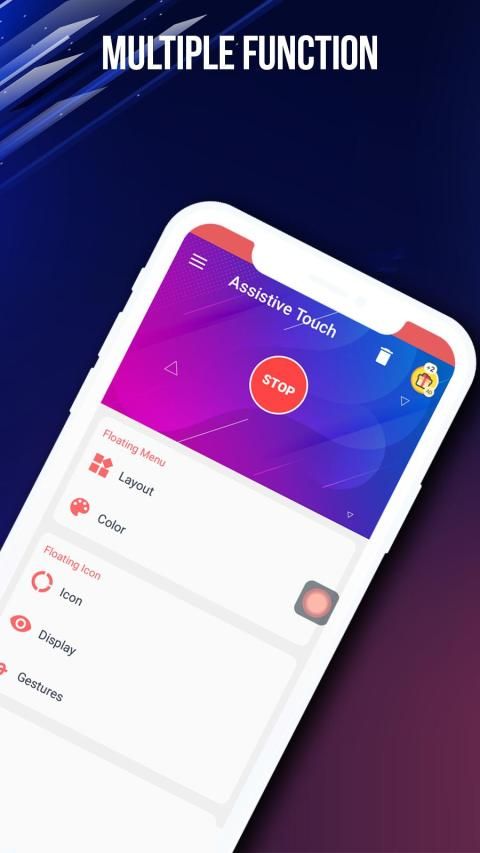
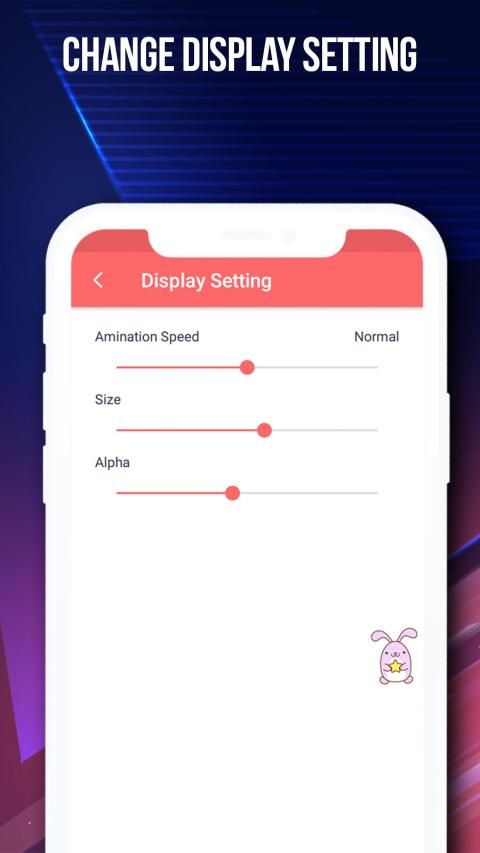
★ Change the background color with beautiful color
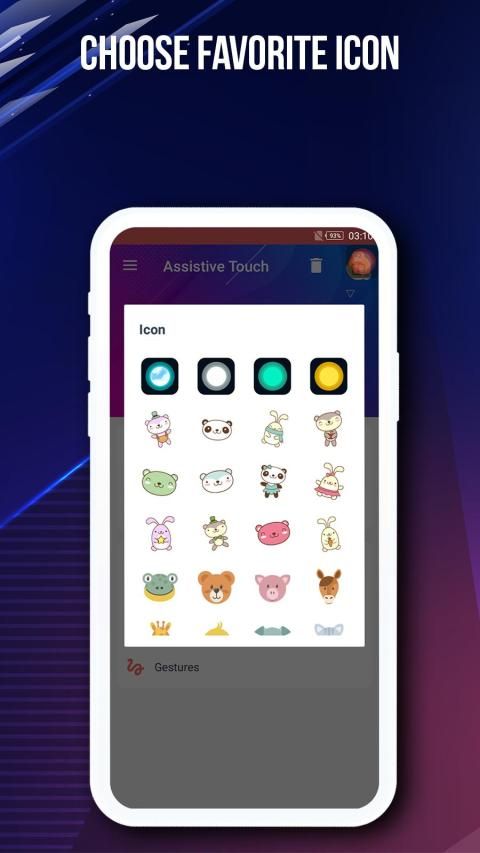
★ Change Assistive touch icon with many pretty icons, totally free
★ Change icon of Assistive Touch easy with many cute icon.
How to turn on Assistive on Android
1. Once installed and activated, you will see a small green dot on the edge of the screen. Tap on it to open the easy launcher menu. You can move the floating button anywhere around the edges of the screen. It doesn’t stick in the center of the screen. If you place it in the center, it will automatically drift to the nearest edge.
2. Tap on the button and you will see a floating panel menu pop out in the center of the screen. The default menu comes with 4 options: Lock Screen, Speed booster - Clean Memory, Home Screen, setting and favorite app This is what makes Floating Touch shines. The floating button is probably the only similarity it has with Assistive Touch. Other than that, you can customize every single item to your liking and make your workflow more productive. . For example, I would like to turn on Bluetooth and Play Music at the same time. It will be great if I can do it with a single tap.
How uninstall Assistivetouch
To uninstall assistive touch , please click on button on the top to uninstall app
Frequently asked questions:
1. Ask: How to uninstall this app?
★ If you use lock screen function, it require turn on Device Administration so If you want to uninstall this Assistive Touch, please click on uninstall button in app .
2. Ask: Why my phone don't have Screenshot Capture function?
★ Screenshot Capture only available on Android 5.0 or higher.
Permissions required :
- This app uses Accessibility Services for Home, Back and Recent functions.
- This app uses the ,Device Administrator permission. BIND_DEVICE_ADMIN permission is used only to lock your device.. App does not use the permission for any other purpose.
- This app uses Accessibility services
.
- CAMERA only to turn on Flashlight, not take a photo or any other purpose.
Thank for watched. If you like AssistiveTouch please review and give us 5 start.
Thank for your support!
सहायक स्पर्श क्या है?
असिस्टिव टच एक फ्लोटिंग ऐप है जो आपके एंड्रॉइड की स्क्रीन पर रहता है और आपको आसानी से किए जाने वाले कार्यों को प्राप्त करने में सहायता करता है। यह आपको सभी सेटिंग को शीघ्रता से एक्सेस करने और अपने होम बटन को सुरक्षित रखने में मदद करता है। स्क्रीन पर फ्लोटिंग पैनल डिस्प्ले के माध्यम से, आप आसानी से एक त्वरित एक्सेस गेम, एप्लिकेशन को छू सकते हैं, जिसे आप प्यार करते हैं, आप सेटिंग, परिवर्तन और सूचनाओं को आसानी से देख सकते हैं। यह वास्तव में एक उपयोगी और नि: शुल्क उपकरण है सहायक स्पर्श आपको केवल एक क्लिक के साथ होम डिवाइस जैसे भौतिक बटन की सुरक्षा करने में मदद करता है। यह डिवाइस को गति देने और बैटरी जीवन को बचाने में मदद करता है।
हाईलाइट फीचर्स असिस्टिवटच
★ लॉक स्क्रीन की रक्षा के लिए एक टच के साथ जल्दी से
★ अपने पसंदीदा एप्लिकेशन, गेम या एक्सेस को जल्दी से एक्सेस करना।
★ पावर बटन बंद करने के लिए एक हल्का स्पर्श।
★ अधिसूचना केंद्र देखें: आप अपने डिवाइस का सूचना केंद्र जल्दी से खोल सकते हैं।
★ स्क्रीनशॉट: आप एक स्पर्श से स्क्रीनशॉट को आसानी से पकड़ सकते हैं
★ हाल का बटन: यह आपके सभी हाल के ऐप्स को खोलने में मदद करता है
★ सेटिंग स्क्रीन: एक्सेस स्क्रीन को जल्दी से एक्सेस करें
★ वर्चुअल बटन भौतिक बटन को प्रतिस्थापित करते हैं (बैक, होम, हाल, वॉल्यूम, पावर)
★ अपने फोन को सहायता के रूप में बूस्ट करें आप आसानी से सिर्फ एक क्लिक के साथ अपने डिवाइस को तेज कर सकते हैं, मेमोरी को मुक्त कर सकते हैं (RAM)
★ फोन मोड जल्दी सेट करना (सामान्य मोड, वाइब्रेंट मोड, साइलेंट मोड)
★ आसानी से सेटिंग्स समायोजित करें: वाईफ़ाई, जीपीएस, ब्लूटूथ पर टच और चालू / बंद करें। आप वॉल्यूम, स्क्रीन ब्राइटनेस एडजस्ट कर सकते हैं
★ टॉर्च: पर / बंद टॉर्च टॉर्च के साथ जल्दी से
अनुकूलन यूआई
★ सुंदर रंग के साथ पृष्ठभूमि का रंग बदलें
★ पूरी तरह से मुक्त कई सुंदर माउस के साथ सहायक टच आइकन बदलें
★ कई प्यारा आइकन के साथ सहायक टच का आइकन बदलें।
एंड्रॉयड पर सहायक चालू करने के लिए कैसे
1. एक बार इंस्टॉल और एक्टिवेट होने के बाद, आपको स्क्रीन के किनारे पर एक छोटा सा हरे रंग का डॉट दिखाई देगा। आसान लॉन्चर मेनू खोलने के लिए उस पर टैप करें। आप स्क्रीन के किनारों के आसपास कहीं भी फ्लोटिंग बटन को स्थानांतरित कर सकते हैं। यह स्क्रीन के केंद्र में नहीं रहता है। यदि आप इसे केंद्र में रखते हैं, तो यह स्वचालित रूप से निकटतम किनारे पर बह जाएगा।
2. बटन पर टैप करें और आपको स्क्रीन के मध्य में एक फ्लोटिंग पैनल मेनू पॉप आउट दिखाई देगा। डिफ़ॉल्ट मेनू 4 विकल्पों के साथ आता है: लॉक स्क्रीन, स्पीड बूस्टर - क्लीन मेमोरी, होम स्क्रीन, सेटिंग और पसंदीदा ऐप यह वही है जो फ्लोटिंग टच चमकता है। फ्लोटिंग बटन शायद एकमात्र ऐसी समानता है जिसमें यह सहायक टच के साथ है। इसके अलावा, आप अपनी पसंद के अनुसार हर एक आइटम को अनुकूलित कर सकते हैं और अपने वर्कफ़्लो को अधिक उत्पादक बना सकते हैं। । उदाहरण के लिए, मैं उसी समय ब्लूटूथ और प्ले म्यूजिक चालू करना चाहूंगा। यह बहुत अच्छा होगा अगर मैं इसे एक टैप से कर सकता हूं।
कैसे असिस्टेंट की स्थापना रद्द करें
सहायक स्पर्श को अनइंस्टॉल करने के लिए, कृपया ऐप को अनइंस्टॉल करने के लिए शीर्ष पर बटन पर क्लिक करें
अक्सर पूछे जाने वाले प्रश्न:
1. पूछें: इस ऐप को अनइंस्टॉल कैसे करें?
★ यदि आप लॉक स्क्रीन फ़ंक्शन का उपयोग करते हैं, तो इसे डिवाइस प्रशासन चालू करने की आवश्यकता होती है, इसलिए यदि आप इस सहायक टच को अनइंस्टॉल करना चाहते हैं, तो कृपया ऐप में अनइंस्टॉल बटन पर क्लिक करें।
2. पूछें: मेरे फोन में स्क्रीनशॉट कैप्चर फ़ंक्शन क्यों नहीं है?
★ स्क्रीनशॉट कैप्चर केवल एंड्रॉइड 5.0 या उच्चतर पर उपलब्ध है।
आवश्यक:
- यह ऐप होम, बैक और हाल के कार्यों के लिए एक्सेसिबिलिटी सर्विसेज का उपयोग करता है।
- यह ऐप डिवाइस एडमिनिस्ट्रेटर की अनुमति का उपयोग करता है। BIND_DEVICE_ADMIN अनुमति का उपयोग केवल आपके डिवाइस को लॉक करने के लिए किया जाता है .. ऐप किसी अन्य उद्देश्य के लिए अनुमति का उपयोग नहीं करता है।
- यह ऐप एक्सेसिबिलिटी सर्विसेज का इस्तेमाल करता है
। - कैमरा केवल टॉर्च चालू करने के लिए, फोटो या किसी अन्य उद्देश्य के लिए नहीं।
देखे जाने के लिए धन्यवाद। अगर आपको असिस्टिवटच पसंद है तो कृपया समीक्षा करें और हमें 5 शुरुआत दें।
धन्यवाद आपकी सहायता के लिए!
Hi, This is the best Assistive Touch for Android 2020


9Apps 4.9